Crucial BX500 2.5″ SATA SSD Review 2025

Crucial BX500 2.5" SATA SSD Review (2025) : Buying Guide / Installation Guide

• Read time: ~8–10 mins • Audience: everyday users, students, budget builders, casual gamers


Short verdict: If you want a fast, reliable upgrade from an HDD without paying NVMe prices, the Crucial BX500 delivers excellent value. Perfect as a starter SSD for laptops and office fleets.

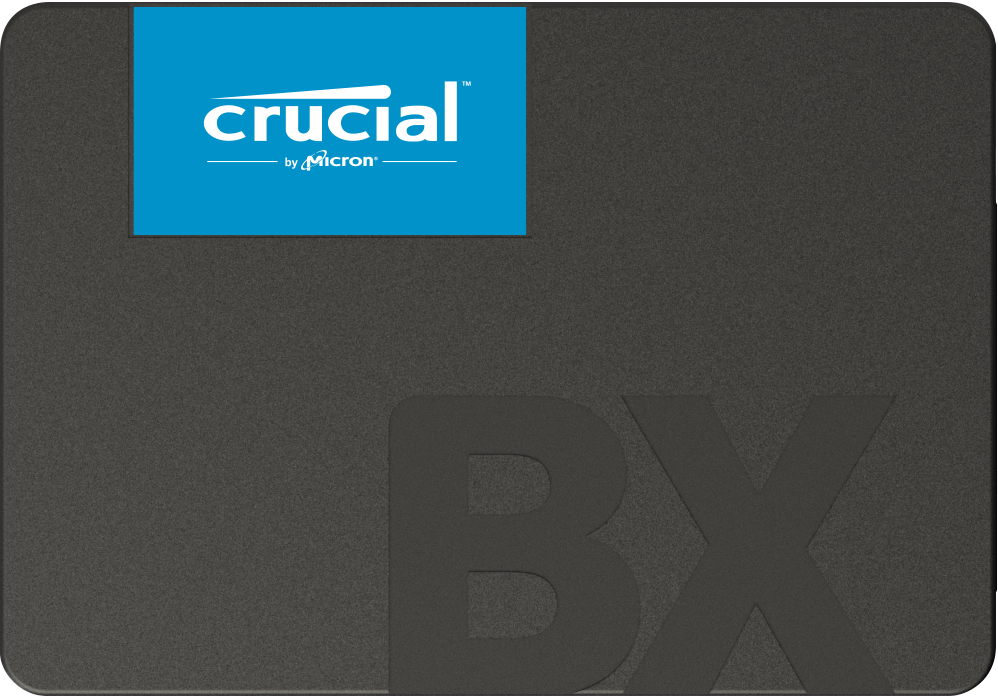
Crucial BX500 — compact 2.5″ SATA SSD with 3D NAND (good for laptop upgrades).

What is an SSD? A Simple Explanation

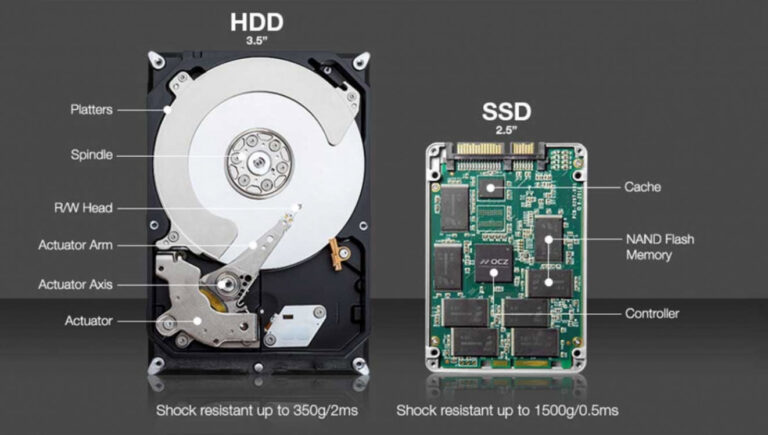
At its core, the difference between a traditional hard disk drive (HDD) and a solid-state drive (SSD) is all about mechanics. A hard disk drive stores data on a spinning magnetic platter, with a mechanical arm moving back and forth to read and write information. This physical process, while reliable for decades, is inherently slow and prone to mechanical failure from heat or physical shock. The whirring and grinding sounds you hear from an old desktop or laptop often originate from this spinning platter. 

In contrast, a solid-state drive has no moving parts whatsoever. Instead, it stores data on flash memory chips, a technology similar to what is used in a USB thumb drive or a smartphone. This design allows for instantaneous data access and transfer. The lack of moving parts is the foundational concept behind all of an SSD’s benefits, from its speed to its remarkable durability.


Feature
Hard Disk Drive (HDD)
Solid-State Drive (SSD)
Technology
Spinning magnetic platters and mechanical read/write heads
Flash memory (NAND) with no moving parts
Speed
Slow, up to 120 MB/s (Sequential Read)
Up to 10-15x faster, up to 550 MB/s (SATA) to 7,500 MB/s (NVMe)
Durability
Prone to failure from drops, shocks, and heat
Highly resistant to drops, shocks, and daily wear and tear
Noise
Audible spinning and grinding sounds
Completely silent operation
Power Use
Higher energy consumption
Much lower power consumption, improves battery life
Form Factor
Larger and heavier (typically 3.5" or 2.5")
Smaller and lighter (2.5", M.2, mSATA)

Why Upgrade to an SSD? The Top 5 Game-Changing Benefits

Replacing a traditional HDD with even a budget-friendly SSD like the Crucial BX500 can feel like getting a new computer. The most immediate and noticeable benefits include:   

  • Blazing-Fast Speed: SSDs can read and write data significantly faster than HDDs. For example, a typical SSD can achieve read speeds of up to 550 MB/s, a monumental improvement over an HDD’s 125 MB/s. This translates to near-instantaneous boot times, rapid application loading, and quicker file transfers.  

  • Superior Durability: Without any delicate, moving components, SSDs are far more resistant to physical shock, drops, and vibrations. This makes them an ideal choice for laptops and portable devices. 

  • Improved Energy Efficiency: SSDs consume less power, which can lead to longer battery life in laptops and lower energy costs for desktop users.    

  • Silent Operation: Unlike the audible whir and clicking of a spinning HDD, SSDs operate in complete silence.

  • More Practical Form Factors: While HDDs are limited by their size, SSDs come in a variety of more compact form factors. The most common is the 2.5-inch size, but they also come in smaller, bare circuit board form factors like the M.2, which allows for thinner and lighter laptops and tablets.

A diagram comparing the internal components of an HDD (spinning platter, read arm) versus an SSD (flash memory chips)

Types of SSDs: A Quick Primer for the Curious

When you start shopping for an SSD, you will encounter two main types of interfaces: SATA and NVMe. Understanding the difference is key to making the right purchase for your needs and budget.

  • SATA SSDs: These drives use the same standard SATA interface as traditional HDDs, which makes them highly compatible with most existing desktop and laptop systems. While they offer a dramatic speed boost over HDDs, they are limited by the SATA 3.0 standard, with speeds typically maxing out around 550 MB/s. The Crucial BX500 falls into this category, making it an accessible and hassle-free upgrade for a vast majority of users. 

  • NVMe SSDs: These drives are the new standard for high-performance computing. They utilize the PCIe interface, which was specifically designed for high-speed flash storage. This allows them to achieve blistering read/write speeds that can exceed 7,000 MB/s. NVMe drives are indispensable for demanding workloads such as professional video editing, 3D rendering, and high-end gaming.

The Crucial BX500 is an entry-level SATA SSD in the 2.5-inch form factor, using 3D NAND flash. It’s positioned as a starter SSD—aimed at replacing older mechanical drives or giving a low cost SSD upgrade for notebooks, desktops and budget builds. It doesn’t try to match premium NVMe drives in raw speed, but it aims to deliver excellent bang for buck, reliability, and enough performance for everyday usage without breaking the bank.

Specification
Details
SSD series
Drive Type
SATA III / 2.5-inch 7 mm SSD
Interface
SATA 6 Gb/s
Sequential Read Speed
Up to 540 MB/s
Sequential Write Speed
Up to 500 MB/s
NAND Technology
Micron 3D NAND
Available Capacities
240GB, 480GB, 500GB, 1TB, 2TB, 4TB
Endurance (1TB model)
360 TBW (Total Bytes Written)
Warranty
3-Year Limited Warranty

Why Choose the Crucial BX500 SSD?

Here are the reasons the BX500 makes sense, especially as a starter SSD:


  1. Cost-effectiveness at scale
    If you need many machines (for students, labs, office PCs) or want to do affordable upgrades, BX500 gives you good performance per rupee/dollar without overspending on NVMe where the extra speed may not give daily returns.

  2. Durability & reliability
    Using Micron’s 3D NAND, solid build, no moving parts; decent TBW figures. For regular user workloads, it’s more than sufficient.

  3. SATA compatibility
    It works with virtually any desktop or laptop with a 2.5-inch SATA bay or SATA connection. No need for special slots or latest boards.

  4. Simple & predictable performance
    For OS, daily apps, light creative workloads (photo editing etc.), even casual gaming, the BX500 offers smooth experience.

  5. Low risk upgrade
    Moving from HDD or older SSD to this kind of modern SATA SSD immediately improves responsiveness with small investment.

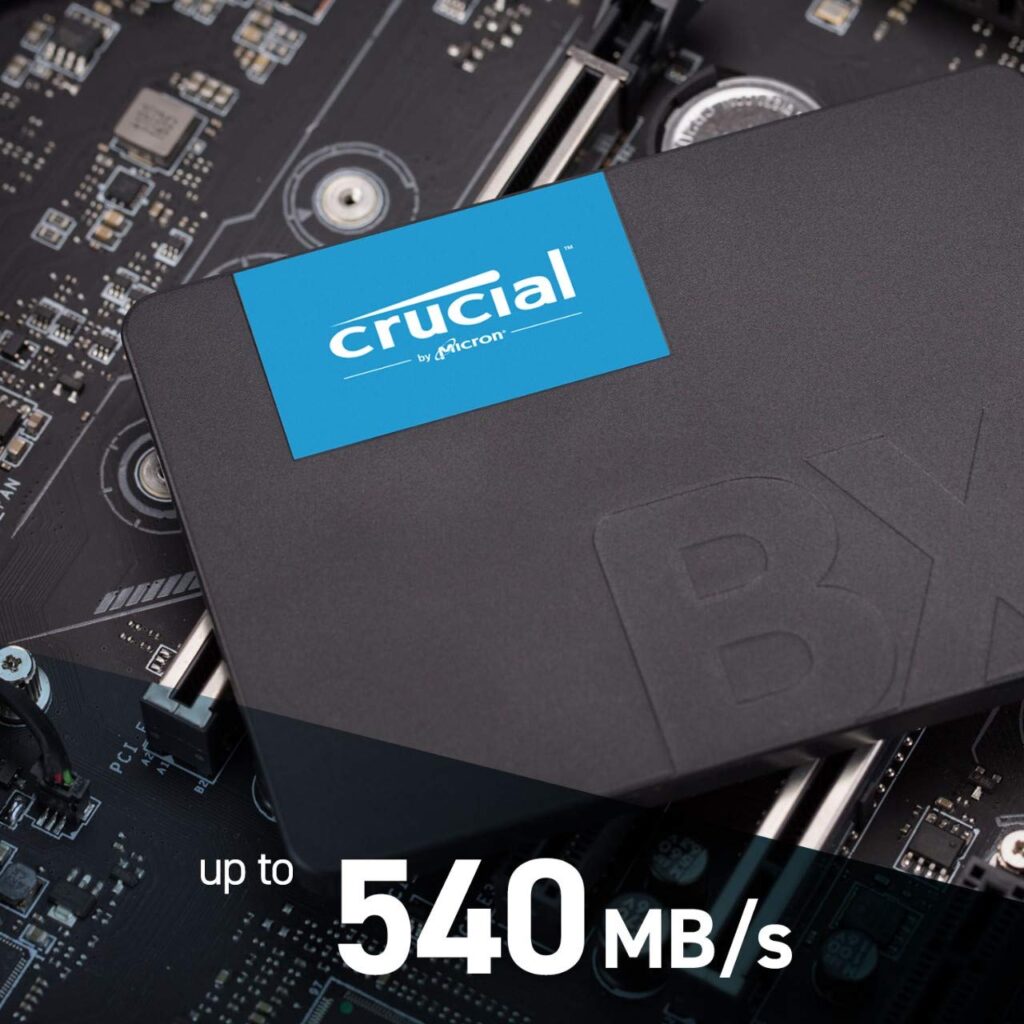
CRUCIAL BX500 up to 540 mb/s read speed

Performance Review of Crucial BX500 SSD

Here’s how the BX500 tends to behave in real-world usage, based on tests and user feedback:

  • Boot times drop massively vs HDDs. Instead of waiting minutes, you often have Windows (or your OS) up in < 20 seconds (depending on hardware).

  • App launch and daily tasks are snappy: loading Microsoft Office, browsers, small tools etc. feels much more responsive.

  • File transfers of moderate sizes (say tens of GBs) are good: you get speeds close to its specs. But when pushing very large sustained writes (e.g. large video files or backups), performance can drop once internal cache / buffer is exhausted.

  • Gaming: for games installed on it, load times are much better than HDDs. But for very large games with big open worlds and high-asset load, NVMe might offer benefits. Still, for most casual & many mid-tier gamers, BX500 is acceptable.

  • Noise / heat: almost none. Compared to desktop HDDs, no audible noise; in laptops, less heat and power draw.

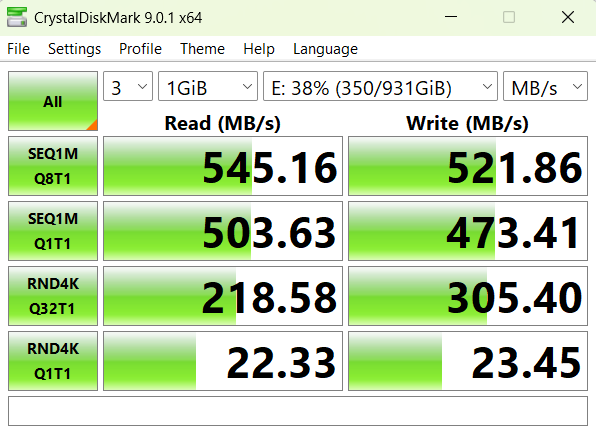
Performance Chart of CRUCIAL BX500

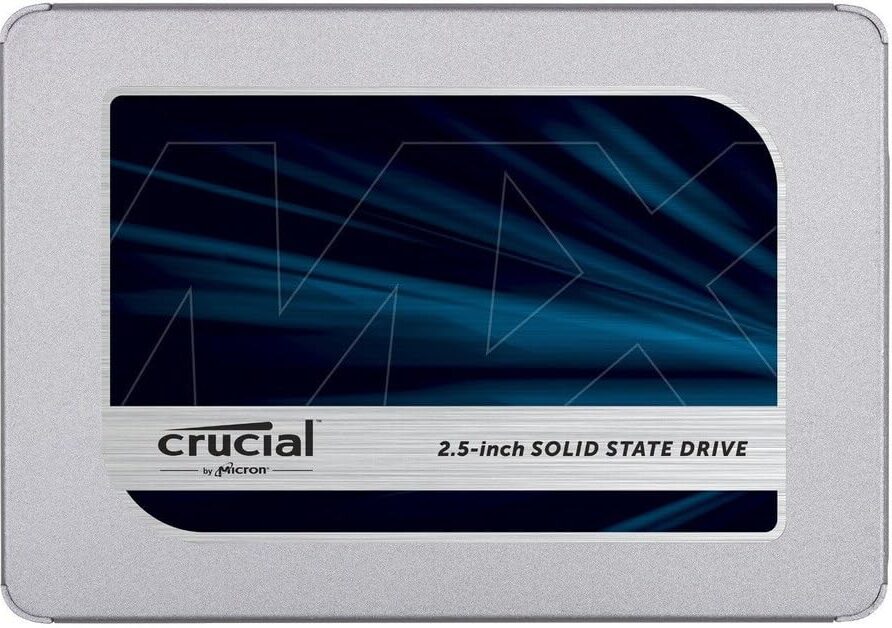
Crucial BX500 vs Crucial MX500

The Sibling Rivalry: Crucial BX500 vs Crucial MX500


The most direct competitor to the BX500 is its own sibling, the Crucial MX500. While both are 2.5-inch SATA drives, the MX500 is considered Crucial’s mainstream, feature-rich option. The key difference lies in the MX500’s inclusion of a DRAM cache and advanced features like hardware-based encryption and a “RAIN” (Redundant Array of Independent NAND) data protection scheme. It also comes with a longer, five-year warranty.

The price-per-gigabyte of the two drives is often very close, leading many to recommend the MX500 for its added features and durability rating. However, this makes the BX500 a phenomenal deal when it goes on sale. For users who do not need the extra features and prioritize the absolute lowest cost of entry, the BX500 is a fantastic choice that delivers the same core, day-to-day performance as its more expensive brother.

Feature
Crucial BX500 crucial bx500 front image
Crucial MX500 61ufwpvkfnl. sl1200
Sequential Read Speed
Up to 540 MB/s
Up to 560 MB/s
Sequential Write Speed
Up to 500 MB/s
Up to 510 MB/s
Controller
Silicon Motion SM2258XT
Silicon Motion SM2258
DRAM Cache
No (DRAM-less)
Yes
Endurance (TBW)
Lower (e.g., 120 TB for 500GB model)
Higher (e.g., 180 TB for 500GB model)
Warranty
3-year limited
5-year limited
Form Factor
2.5-inch
2.5-inch
Encryption
No
Hardware-based encryption (AES 256-bit)
Power Loss Protection
No
Yes
Target User
Everyday computing, budget-conscious users
Enthusiasts, professionals, and heavy workloads

Pros & Cons of Crucial BX500:

                                            Pros:

  • Very affordable price per GB – large capacity (up to 2 TB) for the money.

  • Fast boot and app loading – huge leap over HDD speed (boots often in <10s)tomshardware.com.

  • Improves battery life – 3D NAND flash uses less power than an HDD motor.

  • Quiet and durable – silent operation with no moving parts.

  • Brand reliability – made by Crucial (Micron), a trusted SSD manufacturer.

  • 3-year warranty – decent coverage for an entry-level drive.

                                                     Cons:

  • No DRAM cache – means slower random I/O and dips in sustained write speeds (can drop to ~100 MB/s under loadtomshardware.com).

  • Lower endurance – TBW ratings (40–720) are modest; not ideal for extreme write workloads.

  • SATA interface limited – capped at ~550 MB/s, so not as fast as NVMe drives.

  • 3-year (not 5-year) warranty – competitors like MX500/Samsung often have longer warranties.

  • Basic feature set – lacks features like built-in encryption, but that’s uncommon at this price point.

Who Should Buy the Crucial BX500?

The BX500 is tailored for budget-conscious users who want a noticeable performance upgrade without breaking the bank. It’s ideal for:

  • Everyday PC & Laptop Users: Anyone with an older laptop or desktop can enjoy much faster boot and app loads.
  • Students & Educators: Upgrade a school or work laptop cheaply to improve responsiveness.
  • Office & Business Professionals: Boost older office PCs by replacing their HDDs; the energy savings are a bonus in always-on environments.
  • Budget Builders & DIY Upgraders: Those building a low-cost PC or gaming rig who want SSD speed without NVMe expense.
  • Casual Gamers: Load games faster than an HDD, though pro gamers on SSD-only consoles might opt for higher-end SSDs instead.
  • Content Creators on a Budget: You get fast scratch/disk performance for editing smaller projects. (But heavy video editors may prefer higher endurance drives.)

As PCWorld advises, “those looking to add uber-affordable storage via SATA should consider the Crucial BX500.”pcworld.com Its price–performance ratio is hard to beat. If your workload is typical computing (web, office, media, moderate gaming) and you just want an SSD without paying for top-tier speed, the BX500 fits the bill

Who Should Avoid the Crucial BX500?

The BX500 is not for everyone. The sustained write speed drop and lower endurance make it a poor choice for users with demanding, continuous write workloads, such as:


  • Content Creators: Users who frequently transfer large 4K video files or work with massive project files should consider a drive with a DRAM cache, such as the Crucial MX500, to avoid performance bottlenecks.  

  • Data-Intensive Users: Anyone who performs frequent, large-scale backups, runs virtual machines, or transfers hundreds of gigabytes of data on a regular basis will find the BX500’s performance profile limiting.

The Ultimate Installation Guide: From Box to Blazing Speed

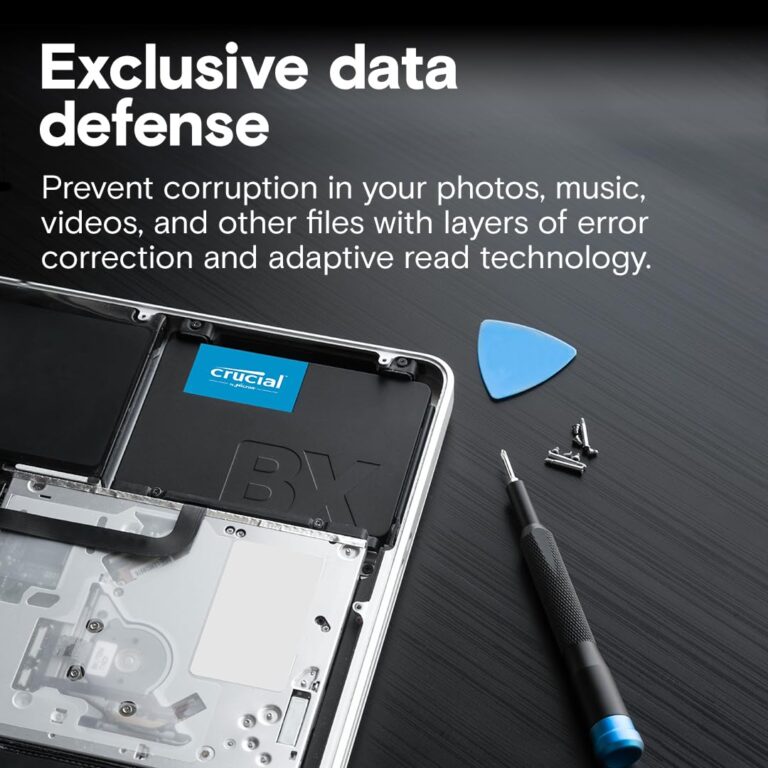
installation of crucial bx500 ssd

Installing a 2.5-inch SATA SSD is a simple and rewarding process. The Crucial BX500 even includes access to a step-by-step installation guide and Acronis True Image for Crucial cloning software to make the process as seamless as possible.


What You’ll Need

  • A screwdriver

  • A SATA data cable (for desktops, often not included with the SSD)

  • An available SATA power cable from your power supply

  • A 2.5-inch to 3.5-inch adapter bracket (for desktops with only 3.5-inch drive bays)

  • Your computer’s user manual for reference

  • An anti-static wrist strap (recommended)

Step-by-Step Desktop Installation:

  1. Prepare your PC: Power down and unplug your desktop. Open the case and ground yourself by touching a metal part of the chassis to discharge any static electricity.

  2. Mount the SSD: Locate an available 2.5-inch drive bay or install the drive in a 3.5-inch bay using an adapter bracket. Secure the drive with screws.

  3. Connect the cables: Connect one end of the SATA data cable to the SSD and the other to an open SATA port on your motherboard. Connect an available SATA power cable from your power supply to the SSD. 

  4. Power on: Close the case, plug the PC back in, and turn it on. If it is a secondary drive, you will need to open Disk Management in Windows to allocate the drive and make it usable.

Step-by-Step Laptop Installation:

  1. Prepare your laptop: Power down your laptop and unplug the power adapter. 

  2. Pro-Tip: The Importance of Disconnecting Your Battery: This is the most crucial step for a laptop upgrade. Even when a laptop is powered off, residual current can be present on the motherboard. Accidentally dropping a screw or touching a sensitive component while the system is still energized can cause a short, permanently damaging your motherboard. Taking a few extra seconds to carefully disconnect the battery from the motherboard is a simple precaution that can save you from a major headache. 

  3. Access the drive bay: Refer to your laptop’s manual to find the access panel for the hard drive. Remove the necessary screws to open it. 

  4. Swap the drives: Carefully remove your old hard drive. Install the Crucial BX500 into the same slot, ensuring it is properly aligned and secured. 

  5. Reassemble: Replace the access panel and screws, reconnect the battery, and power on your laptop.

Data Migration: How to Clone Your Old Drive

If you want to keep your operating system, programs, and files exactly as they are, you do not need to perform a fresh install. The Crucial BX500 includes free access to Acronis True Image for Crucial cloning software, which makes the process of migrating your data simple. The process involves connecting your new SSD to your computer (often with a SATA-to-USB adapter), using the software to clone your old drive, and then physically swapping the drives in your computer. 

The Final Verdict

If you’re ready for an affordable SSD upgrade that gives a major improvement over an HDD, the Crucial BX500 is a top pick among budget SATA SSDs. It’s reliable, cost-effective, and a serious value for students, everyday users, office work, and even light content creation or casual gaming.

If performance per rupee matters more than chasing the fastest specs, the BX500 delivers. If you find your needs growing later, you can always upgrade to NVMe or higher end SATA later—but starting with the BX500 is smart.

👉 Ready to upgrade your storage?
Check current pricing, specs, and availability here: Buy the Crucial BX500 on Amazon

For More Interesting Blogs To Read 

Leave a Comment

Your email address will not be published. Required fields are marked *